Discover Vectary Business solutions for outdoor companies
Let us show you how it works. Your questions - answered.
A backpack 3D configurator lets users customize and visualize their backpack designs. The interactive elements explain and let the user view different colors, materials, compartments, straps, and other features all in one scene. The result is a backpack that is tailored to their specific needs and preferences.
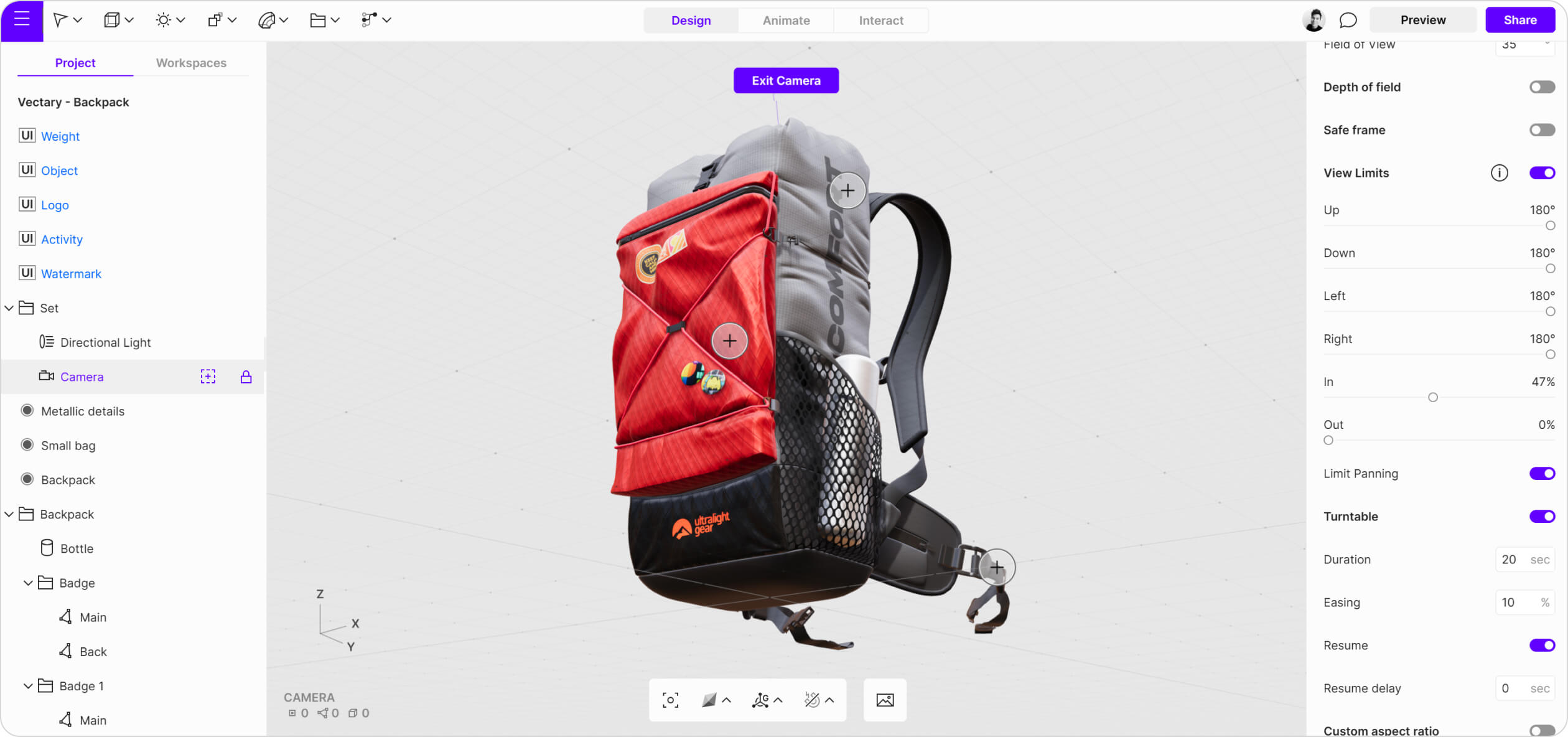
Ultralight backpack configurators let you change materials using multiple hotspots. You can choose from two main color combinations: grey/black or red/black. Each corner features FUI texts that provide additional information about the product.
View the final design in Augmented Reality (AR). By using a mobile phone, it is possible to walk around the bag to see all the sides and zoom in on details.
We designed the backpack model in 3D Studio Max and imported it as an .obj file. It was crucial to create highly detailed geometry to ensure the model looked as realistic as possible. After completing the model, we prepared a variety of textures in Substance Painter and optimized them in Vectary studio. Graphics, badges, and dimensions were designed in Figma and linked to Vectary using Figma Frames. We chose a neutral background to make the backpack and the floating UI stand out in the scene.
The entire scene is illuminated by a single directional light with its intensity set to 60%, angle to 3%, and shadows turned on.
To achieve the desired look and feel, we used adjustments with tone mapping set to ACES and exposure set to 80%. In the advanced settings, Mouse Follow is enabled.
For the backpack, we focused on detailed textures and included a set of stickers/decals applied on top. We only baked a few parts since the model worked well without extensive baking, which also helped reduce the file size. To showcase dimensions, we used transparent .svg format and enabled Double Sided material in advanced material properties, making it visible from both sides.
Tip: Use small, low-resolution textures and increase tiling to reduce file size while maintaining good texture quality.
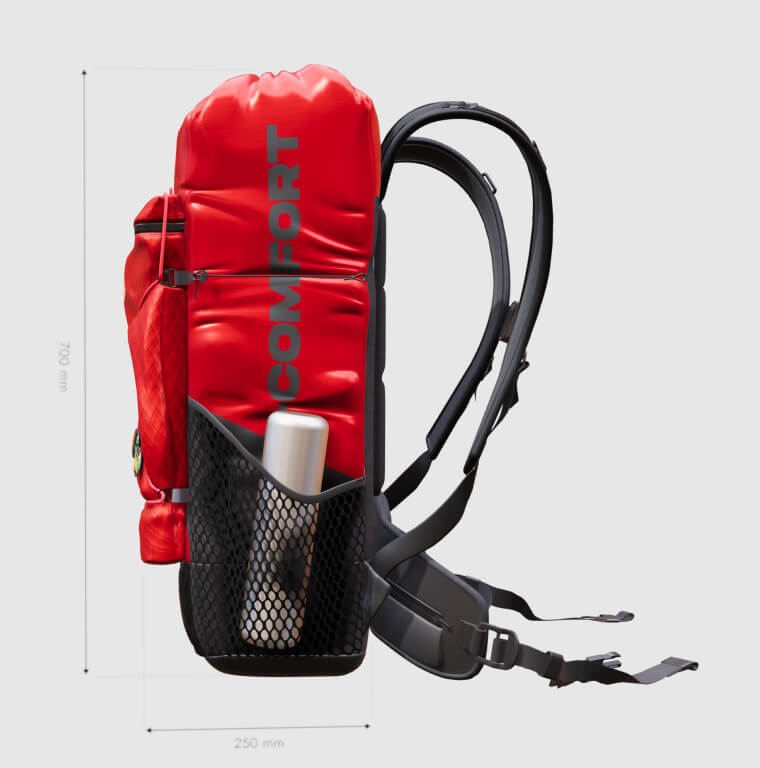
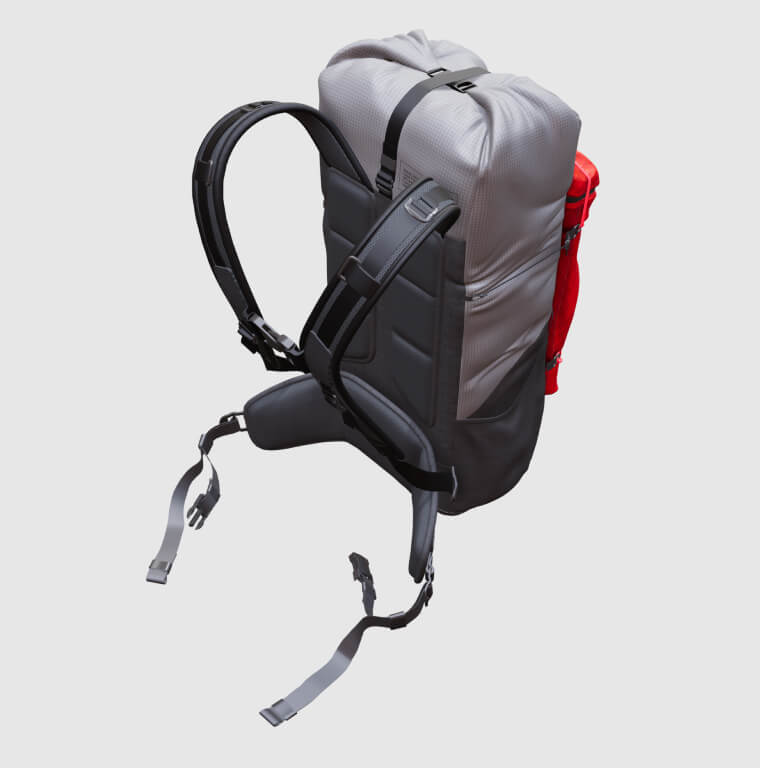
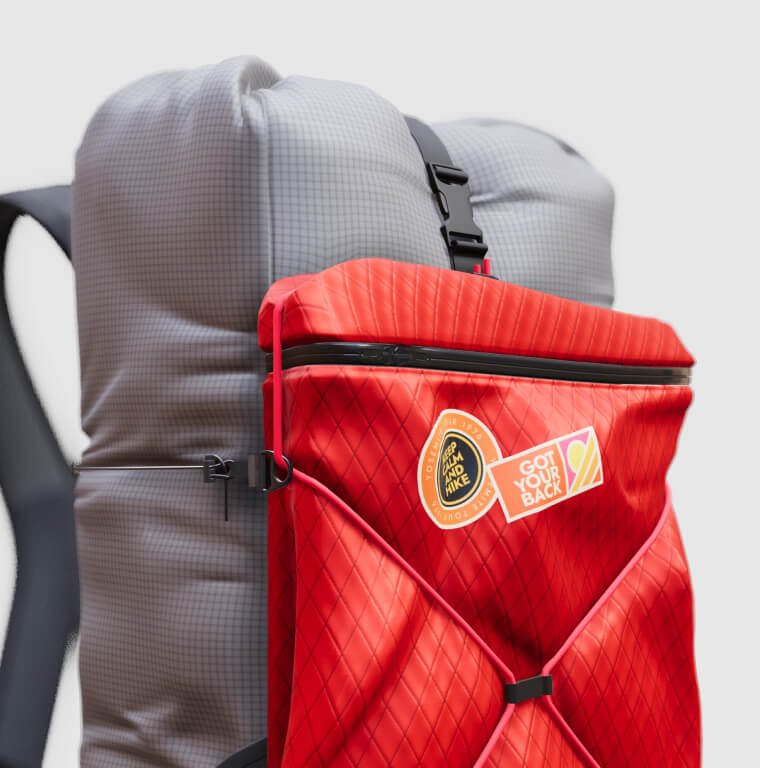
Three hotspots will trigger material switches for different parts of the backpack. These hotspots are set to a material switcher action that changes to the next material. Tip: When switching colors on multiple objects simultaneously using native swatches from the Material switcher, press X to connect them all into one geometry.